.png)
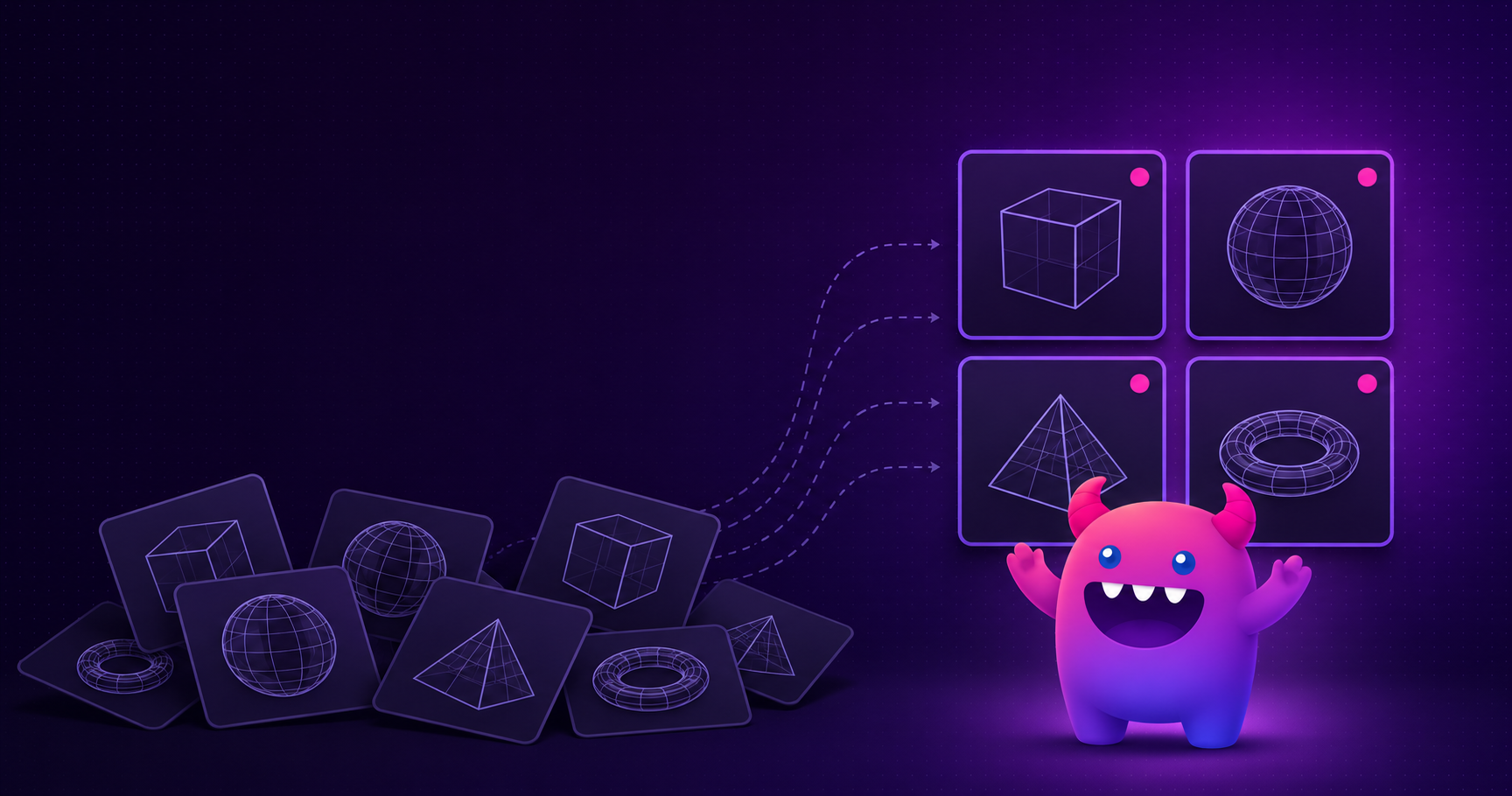
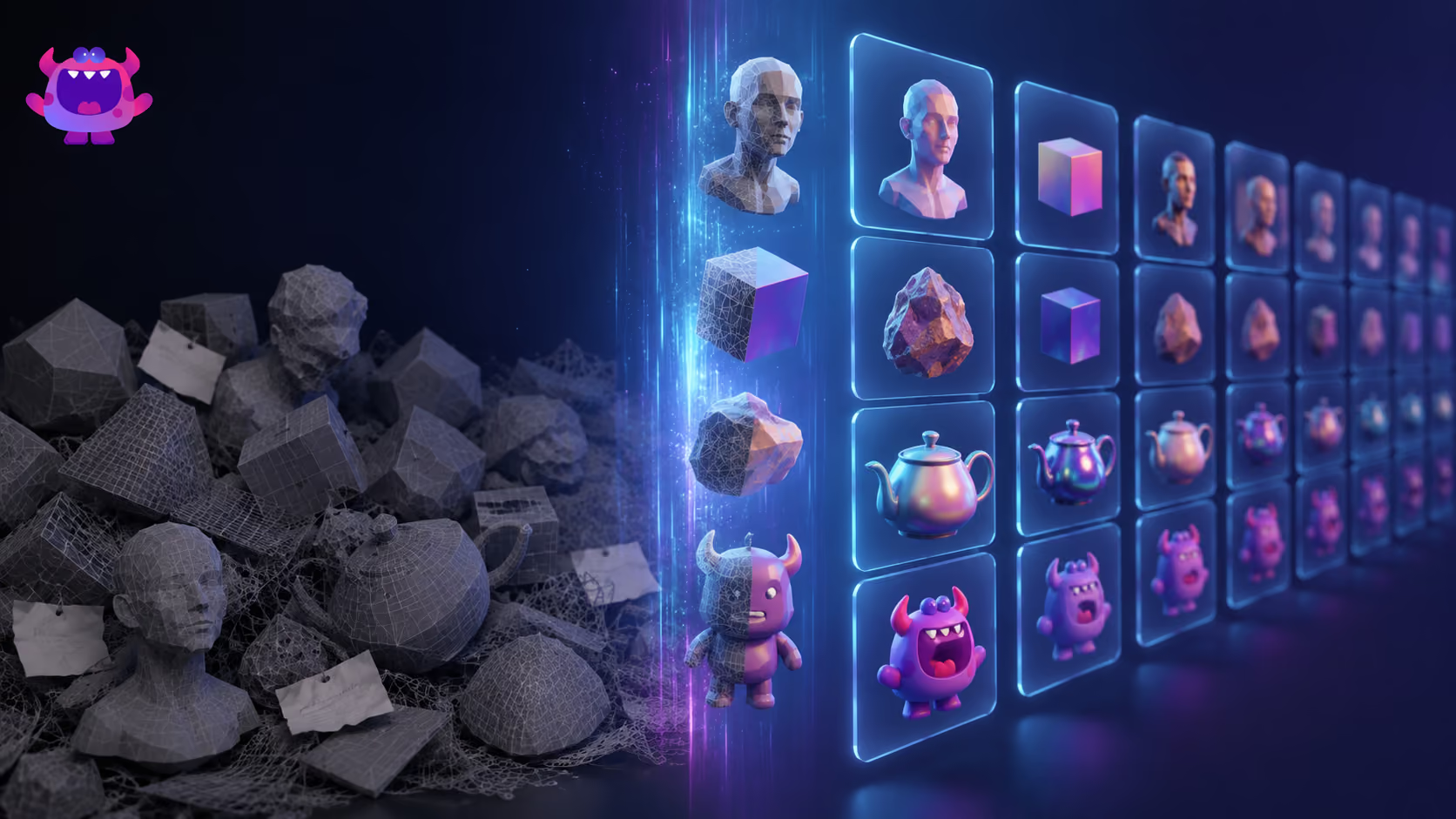
Artstash now supports Microsoft OneDrive as a sync source. Connect a OneDrive folder to Artstash and every file in it — PSDs, FBX models, video, textures, and more — becomes previewable in the browser, searchable, automatically tagged by AI, and ready for frame-by-frame review and automated QC. Your files stay in OneDrive; Artstash syncs on top. Setup takes a few minutes, and creative review is free to sign up and use.
OneDrive joins Google Drive, Dropbox, and Box on the cloud-storage side, alongside Git, Perforce Helix Core, and Diversion for version control — making Artstash the visual asset layer for wherever your team's files already live.
Why OneDrive teams asked for this
If your studio runs on Microsoft 365, OneDrive (and the SharePoint libraries behind it) is probably where your creative files accumulate. It's dependable storage — but as an asset library for creative work, it has the same gaps every generic cloud drive has:
No previews for creative formats. A folder of FBX models or layered PSDs is a wall of grey icons. To see what anything is, you download it and open the source application.
Search that only reads filenames. If the file is called final_v3_new(2).psd — and it is — nobody will ever find it again.
No creative workflow. No review and approval, no tagging, no QC. Feedback ends up in Teams threads pointing at files that have since moved.
What connecting OneDrive to Artstash gets you
- In-browser previews of advanced 2D and 3D formats — FBX, OBJ, GLTF, PSD, PSB, AI, video and more — with no software installs
- AI autotagging of every synced asset, so search works on what's in the file, not what someone named it
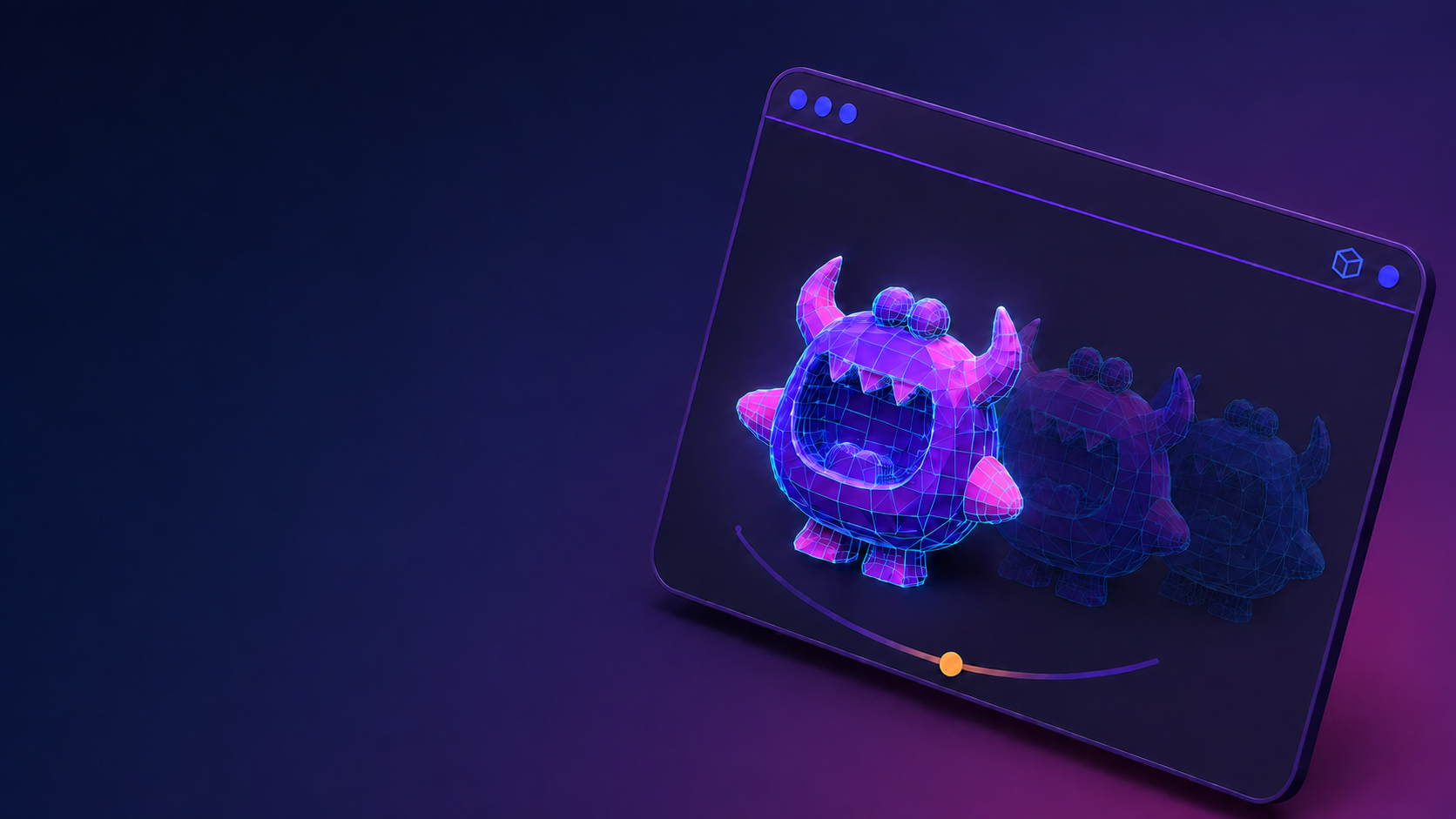
- Frame-by-frame video review and commenting, plus asset-level feedback for stills and 3D
- Automated QC against your team's guidelines — specs, naming, resolution, and brand rules checked as assets arrive
- Secure sharing with clients and external collaborators, without granting access to your Microsoft 365 tenant
How to connect OneDrive to Artstash
The setup is the same three-step flow as our other sync sources:
- Create a project in your Artstash dashboard and choose OneDrive as the sync source.
- Sign in with Microsoft and grant access — a standard, secure OAuth flow.
- Pick the folder to sync. Artstash indexes the files, generates previews, and tags everything automatically.
The full walkthrough is in the knowledge base: Connect OneDrive to Artstash.
Frequently asked questions
Does Artstash move or copy my files out of OneDrive?
No. Your files stay in OneDrive. Artstash syncs and indexes them, generating previews and metadata on top — OneDrive remains your storage and source of truth.
Which file types are supported?
Artstash previews advanced 2D, 3D, and video formats including PSD, PSB, AI, FBX, OBJ, GLTF, 3DS, and standard image, video, and audio files. See the complete list of supported file types.
How much does it cost?
Creative Review in Artstash is free to use. Paid plans start at $249 per month for Studio Lite, with unlimited users on every plan and a monthly AI allowance. Free trials are available. See pricing.
Can I sync OneDrive alongside other sources?
Yes. Teams commonly sync OneDrive for produced and marketing assets alongside Git or Perforce for game files — every source appears in the same searchable workspace.
Ready to try it? Create your free account and connect your first OneDrive folder today.