
How to Use AI Search to Find Assets in Artstash
Quick answer: Click the magnifying glass in the header to open AI Search, then describe what you are looking for. Narrow the results with the Filter menu or by clicking tags.
Traditional asset search depends on somebody having named the file well. AI Search does not. Artstash analyses your assets as they are ingested — including key frames from video and turntable views of 3D models — so you can search for what an asset actually contains.
Running a search
1. Open AI Search
Click the magnifying glass in the top-right header from anywhere in Artstash. You can also open a single project and click Open in AI search to start with the search already scoped to that project.
2. Describe what you are looking for
Type into the search bar. You can search for subject matter, not just file names — for example a character, an environment, or a type of shot.
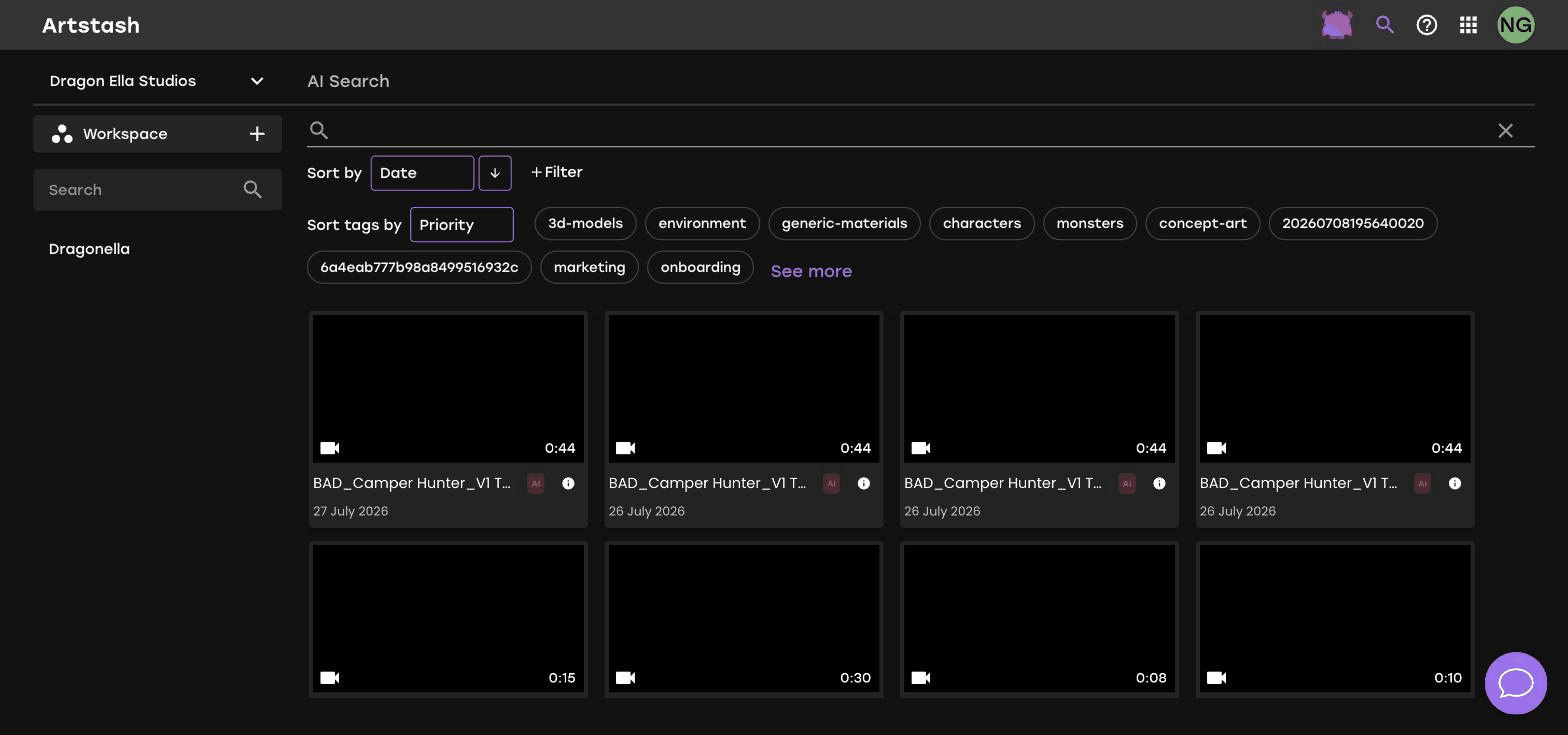
3. Sort the results
Use Sort by to order results by date, and the arrow button next to it to switch between ascending and descending.
Narrowing results with filters
Click + Filter to add a filter. Seven are available:
- Workspace — restrict to one workspace.
- Project — restrict to one project.
- Resolution — useful for finding assets that meet a delivery spec.
- Duration — for finding cuts of a particular length.
- Media Type — video, image, 3D model and so on.
- Uploader — find work added by a particular person.
- Tag — filter by one or more tags.
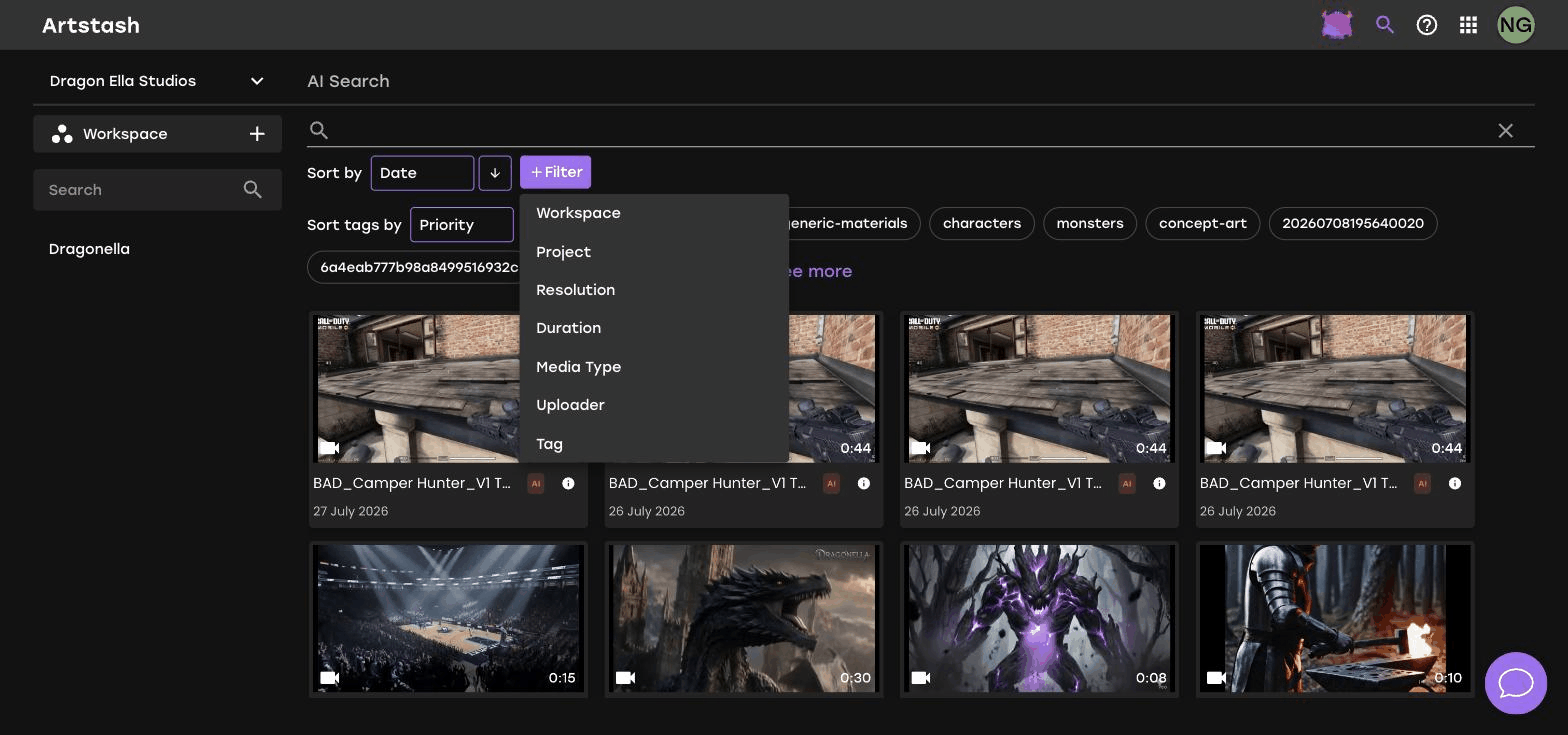
Filters combine, so you can ask for 30-second videos at 1920x1080 in a single project uploaded by one person.
Using the tag cloud
Below the search bar is a row of tags, each showing how many assets carry it. Click a tag to filter to those assets, and click See more to expand the full list. Sort tags by controls the order the tags appear in.
The tag cloud is often the fastest route into a large library: rather than describing what you want, you can see what is actually there and drill in.
Sharing a search
Your search, filters and sort order are all held in the page URL. That means you can copy the address from your browser and send it to a colleague, and they will land on exactly the same set of results. This is a quick way to hand over a set of approved cuts for a campaign without moving any files.
Frequently asked questions
How is AI Search different from searching by file name?
AI Search analyses the content of your assets as they are ingested, including video key frames and 3D turntables, so you can find assets by what they contain rather than what they were named.
Can I combine several filters in AI Search?
Yes. Workspace, Project, Resolution, Duration, Media Type, Uploader and Tag filters can be combined to narrow a large library quickly.
Can I send a search result to a colleague?
Yes. The search terms, filters and sort order are stored in the page URL, so copying the address shares the exact set of results.


