
How to Create and Revoke API Keys in Artstash
Quick answer: Click your avatar in the top right, choose API keys, and click + Create API key. To withdraw access to an existing key, click Revoke on its row.
API keys are how build systems, internal tools and automation scripts authenticate with Artstash without a person signing in. Because a key acts on behalf of your account, it is worth being deliberate about how you create, name and retire them.
Creating an API key
1. Open the API keys page
Click your avatar in the top-right corner and choose API keys from the menu.
2. Click Create API key
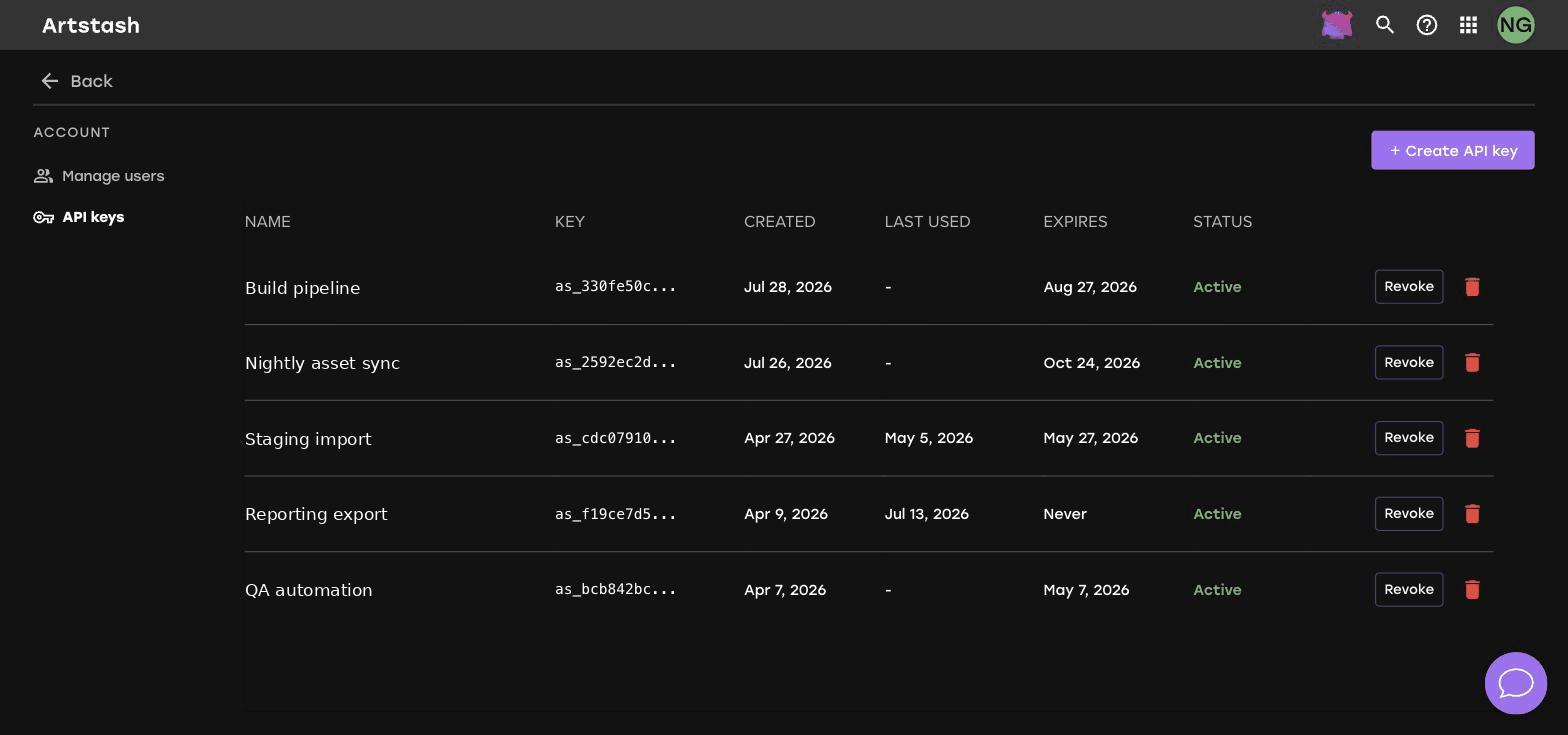
The + Create API key button is in the top right of the page.
3. Name the key for the thing that will use it
Give each key a name that identifies the system or integration it belongs to, not the person who created it. A name like Build pipeline nightly upload tells you what breaks if you revoke it; a name like my key does not.
4. Store the key securely
Treat an API key like a password. Store it in your secret manager or CI credential store, and never commit it to a repository or paste it into a chat message.
Reading the API keys table
The table shows each key with:
- Name — the label you gave it.
- Key — a truncated prefix, enough to identify the key without exposing it.
- Created — when it was issued.
- Last used — when it last authenticated, or a dash if it has never been used.
- Expires — the expiry date, or Never.
- Status — whether the key is currently active.
The Last used column is the most useful one for housekeeping. A key that has never been used is usually a key that can be removed.
Revoking a key
Click Revoke on the key row to withdraw its access immediately. Revoke a key as soon as:
- the integration that used it has been retired;
- it may have been exposed in a log, a repository or a screenshot;
- a team member who held it has left;
- it has never been used and you cannot identify what it was for.
Anything using a revoked key will start failing authentication straight away, so make sure a replacement key is in place first if the integration is still needed.
Good practice
- One key per integration. Shared keys make it impossible to revoke one system without breaking others.
- Set an expiry. A key that expires is a key you cannot forget about.
- Rotate on a schedule. Create the replacement, switch the integration over, then revoke the old key.
- Review quarterly. Sort by Last used and clear out anything dormant.
Frequently asked questions
How do I create an API key in Artstash?
Click your avatar in the top right, choose API keys, then click Create API key and give it a name that identifies the integration using it.
What happens when I revoke an API key?
The key stops working immediately, so any integration still using it will fail authentication. Put a replacement key in place first if the integration is still needed.
How do I know if an API key is still in use?
The Last used column on the API keys page shows when each key last authenticated. A dash means it has never been used.


