We built Artstash around a simple conviction: your assets should be searchable, previewable, and organised wherever they already live. You shouldn't have to migrate everything into yet another system just to get intelligent search and in-browser previews.
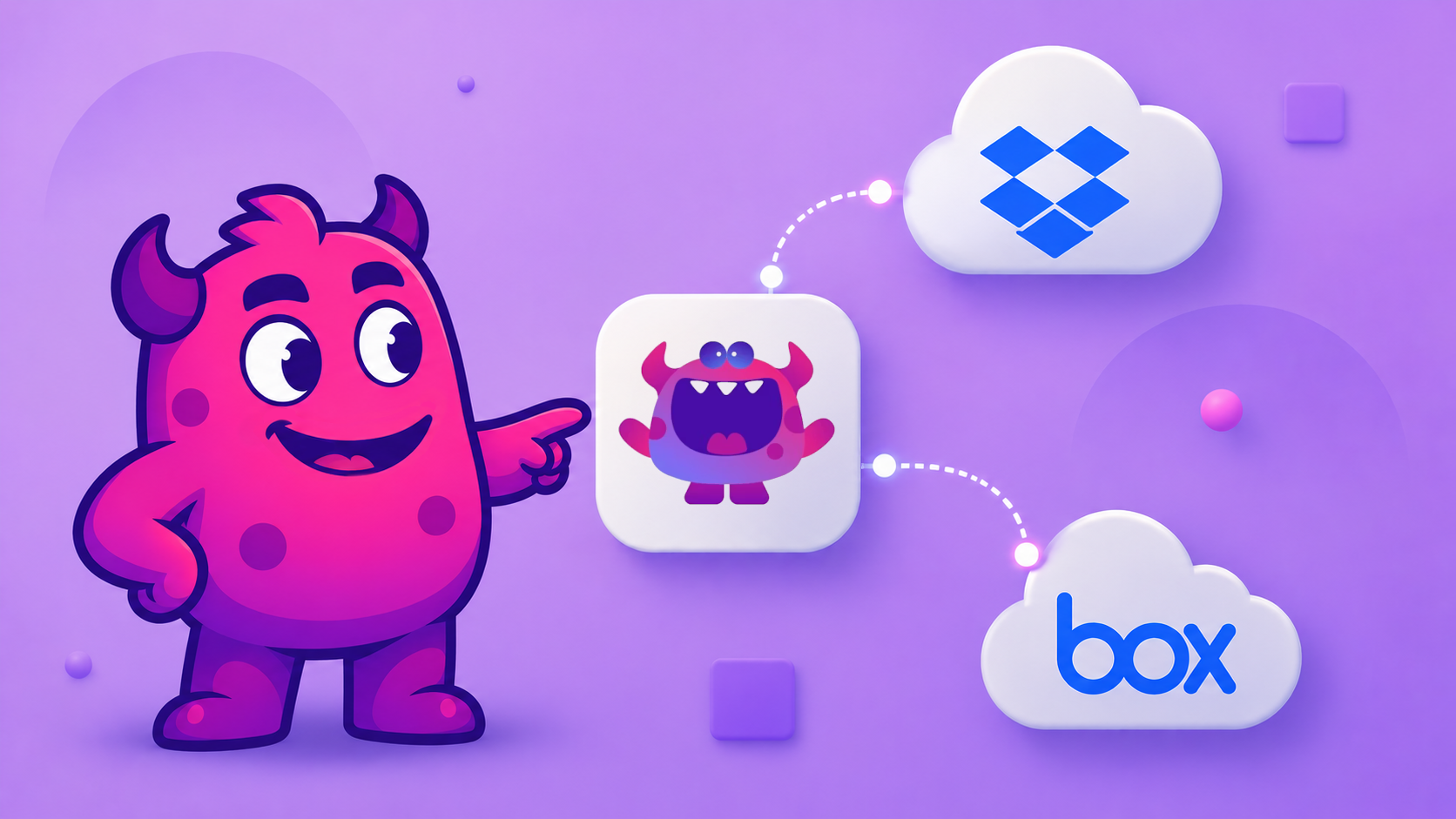
Today, that conviction gets a little stronger. Artstash now supports Dropbox and Box as folder synchronisation sources. If your team keeps assets in either platform, you can now connect them directly and have everything indexed, tagged, and previewable inside Artstash, without moving a single file.
What this means in practice: connect your Dropbox or Box folder once, and Artstash keeps your asset library in sync. Your files stay exactly where they are. Your team keeps working the way they already do.
Whether you're a game studio with a shared Dropbox for reference art, or a video production company running Box for client deliverables, this update closes a gap that many of you have been asking about. Here's how to get connected.
How to Connect Dropbox to Artstash
Connecting Dropbox takes a couple of minutes. You'll authorise access through Dropbox's own OAuth flow, so Artstash never handles your credentials directly.
Step-by-step
- Open your Artstash workspace and navigate to Settings > Integrations.
- Under Cloud Storage, select Dropbox and click Connect.
- You'll be redirected to Dropbox to authorise access. Sign in and grant the requested permissions.
- Once authorised, you'll be returned to Artstash. Select the folder you want to sync (you can choose a specific subfolder rather than your entire Dropbox).
- Click Start Sync. Artstash will begin indexing the contents of that folder.
What happens after you connect
- Initial sync crawls your selected folder and indexes all supported file types, including FBX, OBJ, GLTF, PSD, and more.
- Ongoing sync keeps your Artstash library up to date as files are added, updated, or removed in Dropbox.
- Previews and search are available immediately after indexing. No need to re-upload or re-tag anything manually.
Note: Artstash syncs folder contents only. It does not modify, move, or delete any files in your Dropbox.
How to Connect Box to Artstash
The Box connection follows the same pattern. Box is popular with larger production teams and studios that need enterprise-grade permissions, and Artstash respects those structures when syncing.
Step-by-step
- Open your Artstash workspace and navigate to Settings > Integrations.
- Under Cloud Storage, select Box and click Connect.
- You'll be redirected to Box to complete the OAuth authorisation. Use the account that has access to the folder you want to sync.
- Once you've approved access, return to Artstash and choose the Box folder to sync.
- Click Start Sync to begin indexing.
A note on Box permissions
Box uses a folder-level permission model, and Artstash honours it. If a collaborator on your Box account only has access to a specific subfolder, they'll only see those assets in Artstash, not your entire Box hierarchy. This makes it straightforward to share a curated set of assets with external collaborators or contractors without exposing your full library.
- Supported: personal Box accounts and Box Business plans
- Enterprise SSO: if your organisation uses Box with SSO, use the account tied to your SSO credentials when authorising
- Re-syncing: you can disconnect and reconnect at any time from Settings > Integrations without losing your Artstash metadata or tags
Your Data, Your Home: Artstash's Commitment to Seamless Integration
Dropbox and Box are the latest additions to a growing list of sources that Artstash can connect to. But they represent something bigger than two new checkboxes on an integrations page.
The creative teams we work with don't live in one tool. Assets are spread across cloud storage, version control systems, local drives, and shared folders that have accumulated years of work. Asking a team to abandon that infrastructure and start fresh in a new system isn't just inconvenient; it's a real barrier to adoption that means good tooling never gets used.
Our approach is the opposite. Artstash is designed to sit across your existing stack, not replace it.
What you can connect today
- Google Drive for teams already on Google Workspace
- Dropbox for studios sharing large binary assets
- Box for Enterprise teams with strict permissions
- Git (GitHub, Azure DevOps) for engineering-led game dev pipelines
- Diversion for teams with large file versioning
The pattern is consistent across all of them: connect once, sync automatically, and get intelligent search and in-browser previews without changing how your team stores or versions files.
Why this matters for creative teams
Most DAM platforms ask you to centralise first. Upload everything, re-organise it their way, then work from within their system. That works for some teams, but it creates a painful migration project upfront and a fragile dependency on a single platform going forward.
Artstash indexes where your files already are. A 3D artist saving an FBX to a Dropbox folder doesn't need to do anything differently. The next time someone searches for that asset in Artstash, it's there, with a preview, with metadata, with version history if the source supports it.
The goal: every asset your team has ever made should be findable in seconds, regardless of where it lives.
We'll keep adding sources. If there's a storage or version control system your team relies on that isn't listed above, let us know and it goes straight onto the roadmap.
Get Started
If you're already on Artstash, head to Settings > Integrations to connect Dropbox or Box now. It takes less than five minutes and your assets will start appearing in search straight away.
New to Artstash? The knowledge base has guides for every integration, and you can start a free workspace today to see how your existing storage connects.
Questions or running into anything? Reach out via the in-app chat or drop us a message at artstash.io. We read everything.