
Understanding Asset Review Statuses in Artstash
Quick answer: Open an asset, click Select Status in the toolbar, and choose In Progress, Needs Review or Approved. The status travels with the asset so anyone opening it can see where it stands.
Review statuses turn a folder of files into a pipeline. Instead of chasing approvals over email, your team can see at a glance which assets are still being worked on, which are waiting on a reviewer, and which are signed off and safe to ship.
The three statuses
- In Progress (blue) — the asset is still being worked on. It is not ready for anyone to review, and it should not be used downstream.
- Needs Review (yellow) — the creator has finished and is handing the asset to a reviewer. This is the queue reviewers should work from.
- Approved (green) — the asset has been signed off and can be delivered or used in production.
How to set a status
1. Open the asset
Click the asset from a project or from AI Search to open it in the preview.
2. Click Select Status
The status control sits in the toolbar, immediately to the right of the file name. If no status has been set yet it reads Select Status.
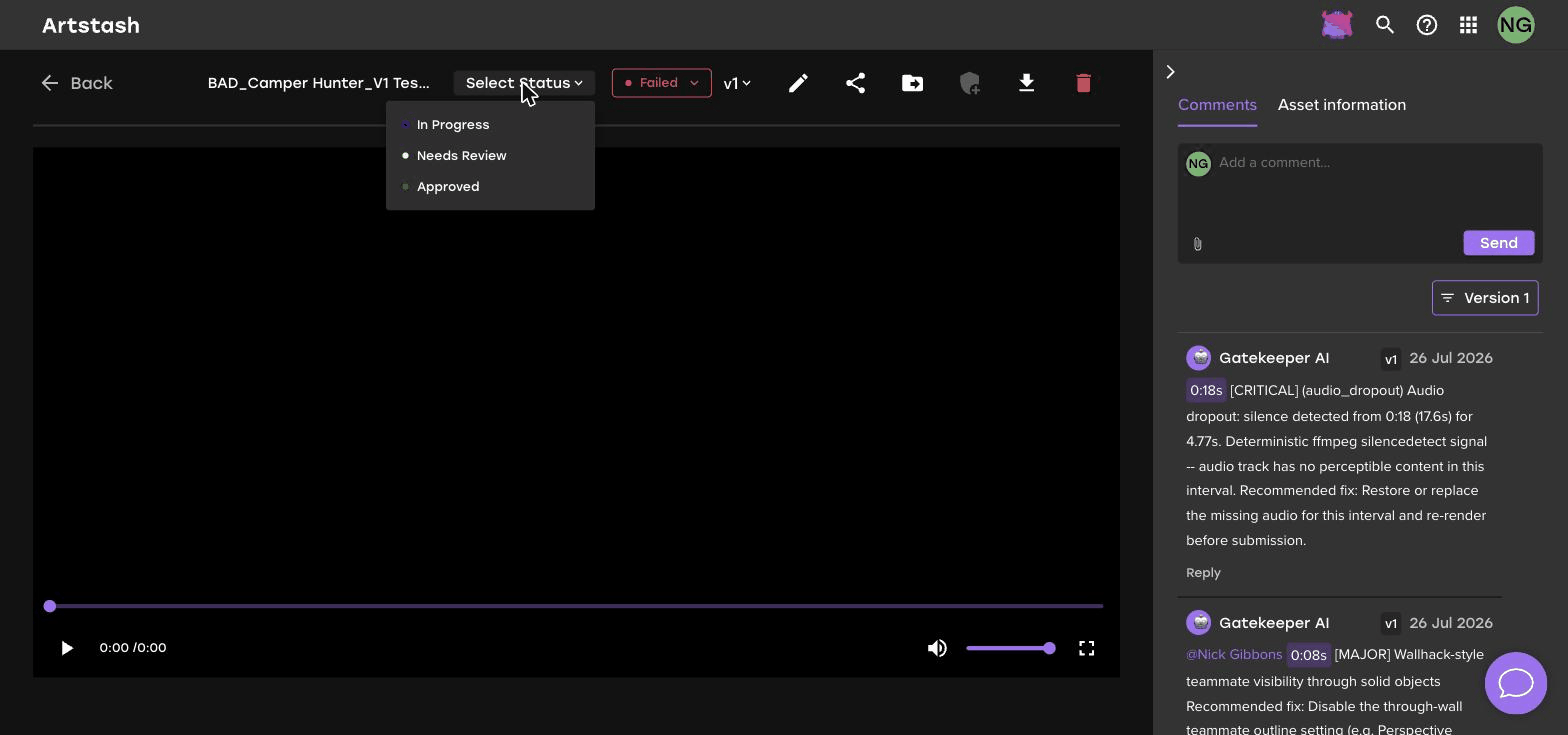
3. Choose the new status
Pick the status from the list. It saves immediately, and the coloured indicator updates for everyone with access to the asset.
Building a review workflow
A simple loop that works for most teams:
- An artist uploads a new version and leaves it at In Progress while they finish.
- When it is ready, they move it to Needs Review.
- The reviewer opens the asset, leaves comments on anything that needs changing, and either moves it back to In Progress or up to Approved.
- If changes are needed, the artist uploads a new version against the same asset so the whole history stays in one place.
Because comments are attached per version, a reviewer looking at version 3 sees the notes for version 3 rather than a single undifferentiated thread.
Letting external reviewers set a status
Clients and partners can set statuses without an Artstash account. When you create a share link, tick Allow status change and anyone with the link can move the asset between statuses. Leave it unticked if you want external reviewers to comment but not to sign off.
Frequently asked questions
What do the Artstash review statuses mean?
In Progress means the asset is still being worked on, Needs Review means it is waiting on a reviewer, and Approved means it has been signed off and is ready to use.
Can external reviewers change an asset's status?
Yes, if you tick Allow status change when you create the share link. Leave it unticked to let them comment without signing off.
Does the status apply to every version of an asset?
The status reflects the asset's current state in your review process, while comments are recorded against the specific version they were left on.


