
How to Comment on Assets and Give Feedback
Quick answer: Open an asset, type into the comment box on the Comments tab of the right-hand panel, attach a file with the paperclip if you need to, and click Send. Comments stay attached to the asset version you left them on.
Feedback that lives in an email thread is feedback nobody can find three weeks later. Commenting in Artstash keeps every note attached to the asset itself, so the next person to open the file sees the full history of what was asked for and what changed.
Leaving a comment
1. Open the asset
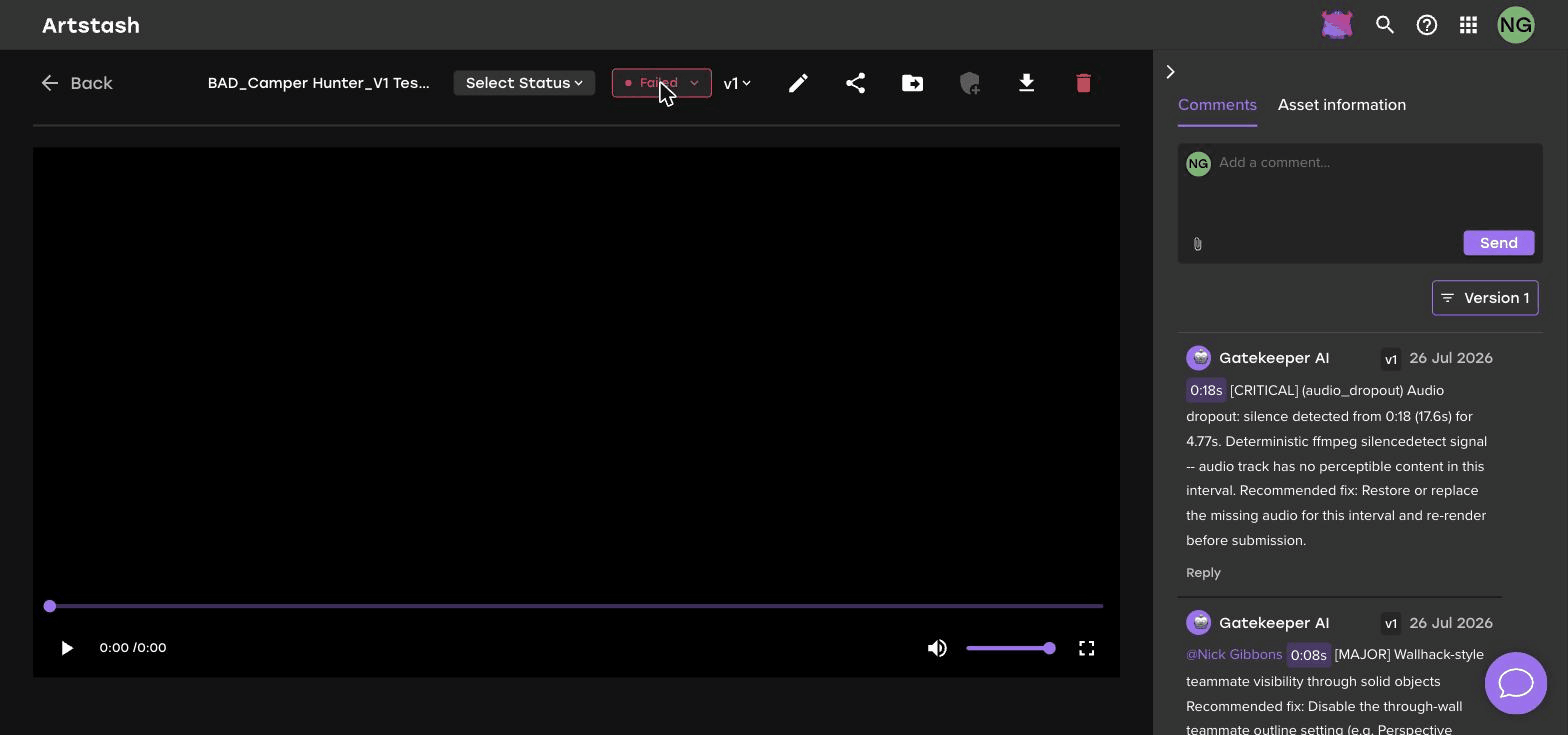
Click the asset to open the preview. The comment panel is on the right. If it is collapsed, click the arrow at the top of the panel to open it.
2. Select the Comments tab
The right-hand panel has two tabs, Comments and Asset information. Comments is selected by default.
3. Write your feedback
Click into the comment box and type. Be specific about what needs to change and where — a reviewer note like logo is too small on the end card saves a round trip compared with end card needs work.
4. Attach a reference file if you need one
Click the paperclip icon at the bottom left of the comment box to attach a file. This is useful for marked-up screenshots, brand guidelines, or a reference frame showing what you want instead.
5. Click Send
Your comment is posted against the asset and is visible to everyone with access to it.
Reading comments for a specific version
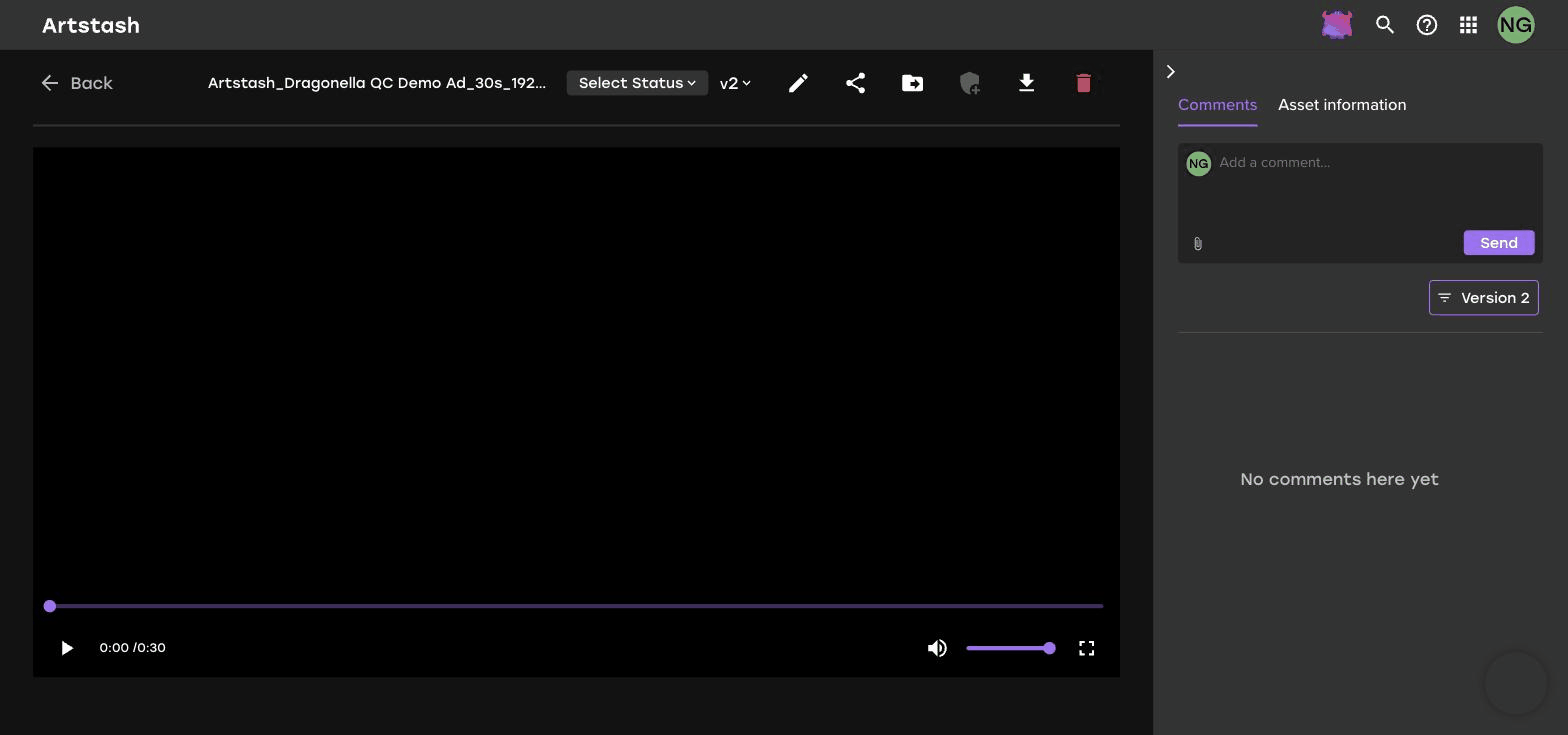
Comments are recorded against the version of the asset that was open when they were left. The version control at the top of the comment panel — labelled Version 1, Version 2 and so on — filters the thread so you only see the notes for that version.
This matters during a review cycle. When an artist uploads a new version to address feedback, the old notes stay attached to the old version instead of cluttering the current conversation.
Collecting feedback from people outside your team
Clients and external reviewers do not need an Artstash account to comment. When you create a share link, tick Allow comments. Anyone with the link can then leave feedback, and it lands in the same thread as your internal notes rather than in a separate email chain.
Frequently asked questions
Can I attach a file to a comment in Artstash?
Yes. Click the paperclip icon in the comment box to attach a reference image, a marked-up screenshot, or any other supporting file.
Do comments carry across asset versions?
Comments are recorded against the version they were left on, and the version filter above the thread lets you read the notes for a specific version.
Can clients comment without an Artstash account?
Yes. Tick Allow comments when you create a share link and anyone with that link can leave feedback without signing up.


