
How to Work with Asset Versions in Artstash
Quick answer: Open an asset and use the version dropdown next to the status control (labelled v1, v2 and so on) to switch between iterations. Comments are filtered to the version you are viewing.
Every creative team has met a folder containing final, final_v2 and final_ACTUAL_use_this. Artstash replaces that with a single asset that carries its own history, so there is never a question about which file is current.
Switching between versions
1. Open the asset
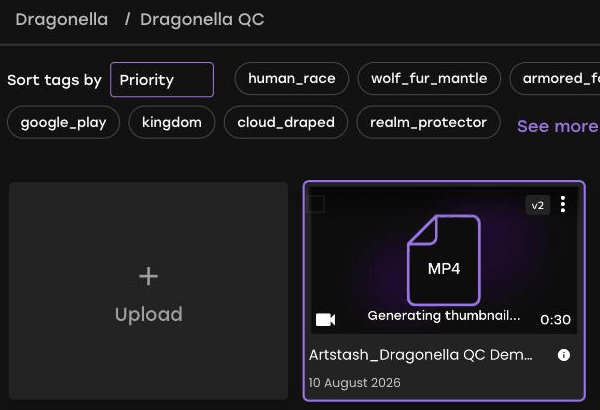
Click the asset from a project or from AI Search. Assets with more than one version show a version badge on their card in the grid.
2. Use the version dropdown
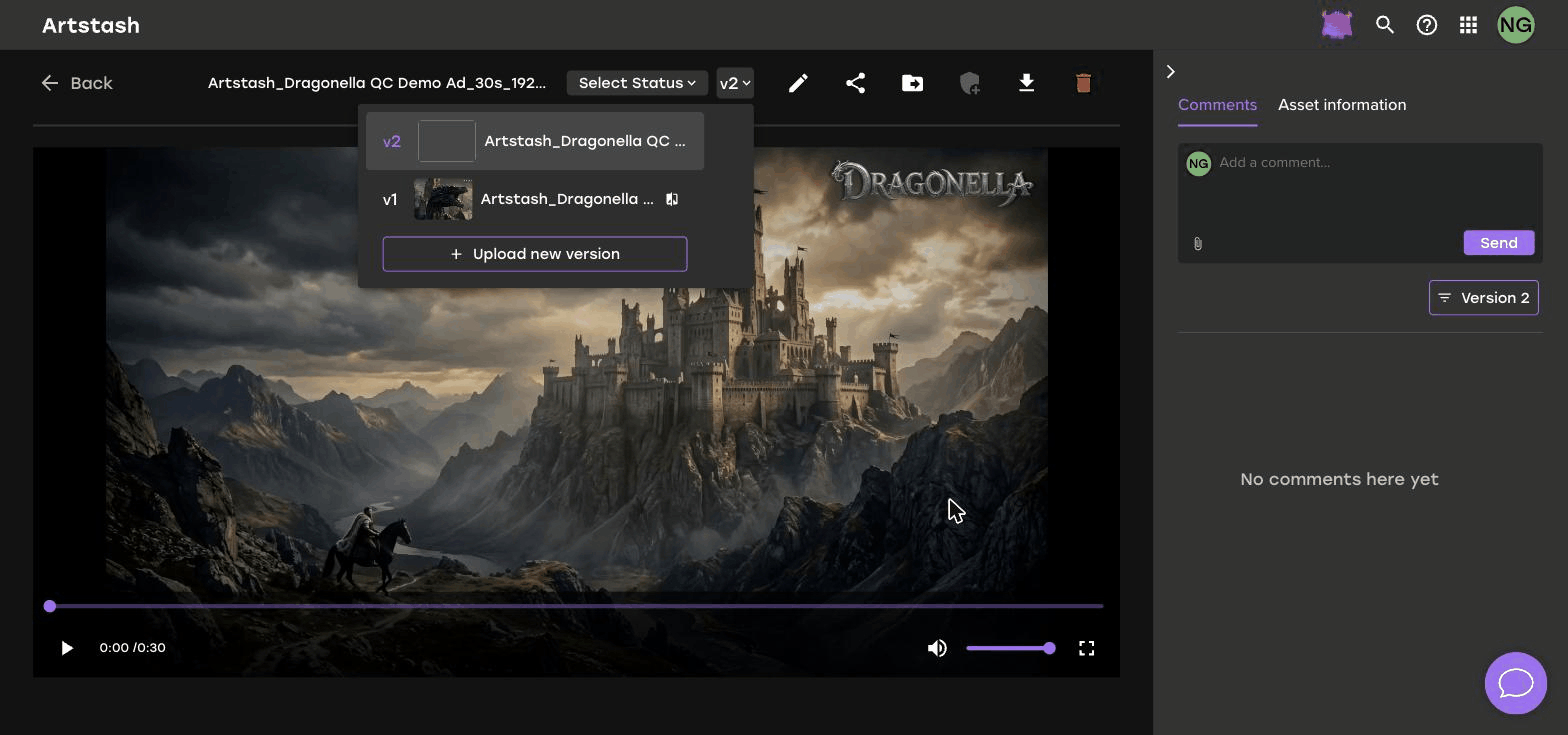
In the toolbar, just right of the status control, is a dropdown showing the current version number. Click it to see every version of the asset, each with its own thumbnail, and choose the one you want to view.
3. Add a new version
The same dropdown is where iterations are added. Click + Upload new version to attach a new file to this asset, rather than uploading it as a separate asset. This is what keeps the history, comments, tags and share links together.
4. Read the comments for that version
The comment panel filters to the version you are viewing, using the version control above the thread. Feedback given on version 1 stays with version 1 rather than mixing into the current conversation.
Why versioning matters in review
Versions and review statuses work together. A typical cycle looks like this:
- Version 1 is uploaded and moved to Needs Review.
- The reviewer leaves comments and moves it back to In Progress.
- The artist addresses the notes and uploads version 2 against the same asset.
- The reviewer opens version 2, checks it against the version 1 notes, and moves it to Approved.
Because everything lives on one asset, the share link you sent to a client keeps working, the tags stay attached, and anyone auditing the decision later can see exactly what changed and why.
Spotting versioned assets in the grid
In a project or in AI Search, assets with multiple versions show a version badge in the corner of their card. This is a quick way to find the assets that have been through a review cycle.
Frequently asked questions
How do I see an older version of an asset in Artstash?
Open the asset and use the version dropdown in the toolbar to switch to the version you want to view.
How do I upload a new version of an existing asset?
Open the version dropdown in the asset toolbar and click + Upload new version. This attaches the file to the existing asset so comments, tags and share links stay intact.
Are comments kept separately for each version?
Yes. Comments are recorded against the version they were left on, and the comment panel filters to the version you are currently viewing.


