
How to Share Assets Externally with Share Links
Quick answer: Open an asset, click the share icon, and Artstash generates a link immediately. Use the checkboxes to allow downloading, commenting, status changes or a watermark, then click Copy link.
Sharing work outside your organisation usually means a choice between convenience and control: a public file link is easy but ungoverned, while a full user account is secure but slow. Share links sit in between. The recipient needs nothing but the URL, and you decide exactly what they can do.
Creating a share link
1. Open the asset and click the share icon
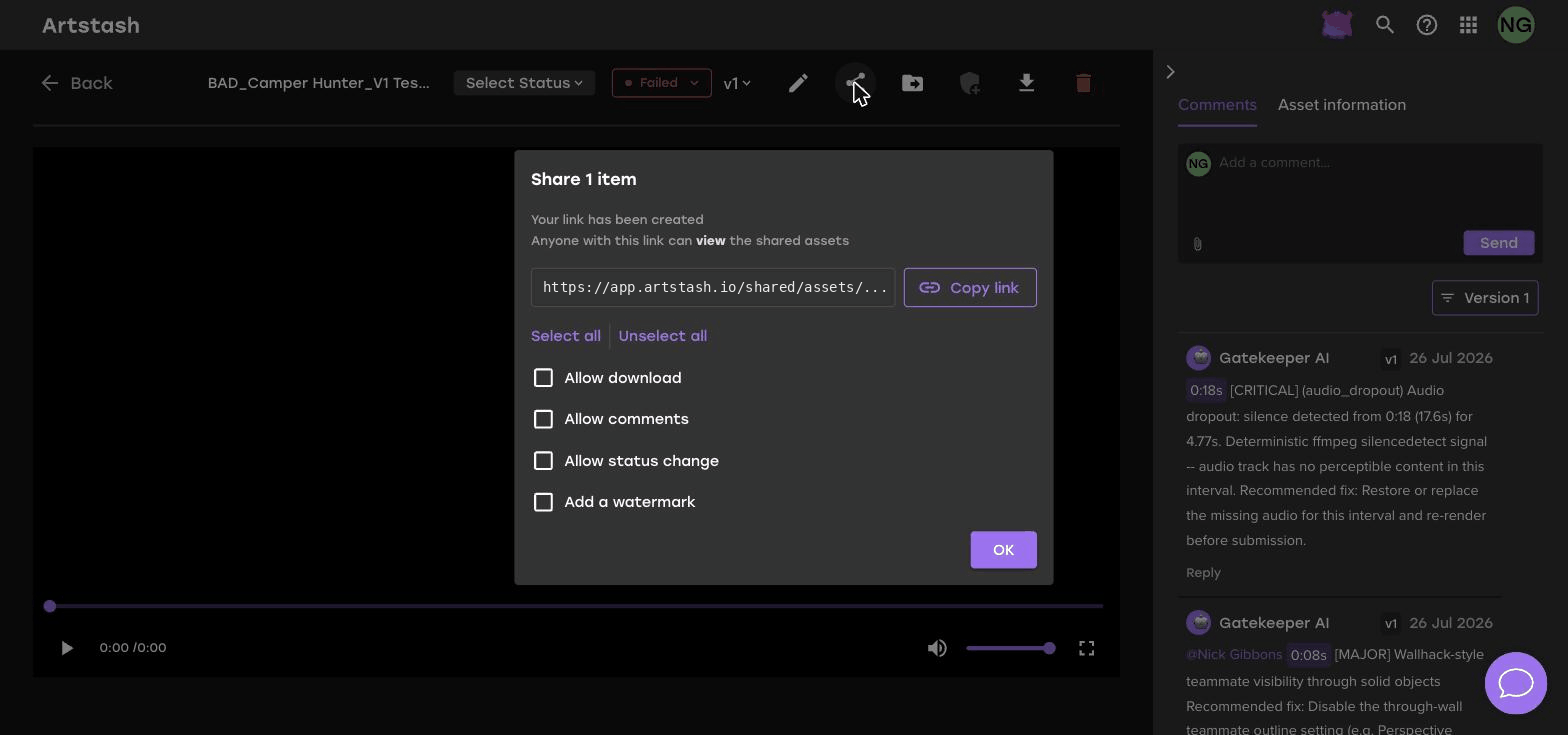
The share icon sits in the asset toolbar, between the rename pencil and the move icon. The link is created as soon as the dialog opens.
2. Set the permissions
By default a link is view only. Tick the options you want to grant:
- Allow download — the recipient can download the original file. Leave this off when you are sharing work for review rather than delivery.
- Allow comments — the recipient can leave feedback, which appears in the same thread as your internal comments.
- Allow status change — the recipient can move the asset between In Progress, Needs Review and Approved. Useful when a client is the formal approver.
- Add a watermark — overlays a watermark on the shared asset.
Use Select all and Unselect all to set every option at once.
3. Copy and send the link
Click Copy link, then OK. Paste the link into an email or message. Recipients open it in a browser with no account or sign-in required.
Choosing the right permissions
- Client review round. Allow comments, and allow status change if the client signs off. Leave download off and add a watermark.
- Final delivery. Allow download, and leave the watermark off.
- Sharing unreleased work. Keep everything off except comments, and add a watermark.
- Quick internal look. A plain view-only link is usually enough.
Keeping track of what you have shared
Every link you create is listed on the workspace Shared Links page, where you can see who created it and when, and switch it off when it is no longer needed. Get into the habit of reviewing that list at the end of a project.
Frequently asked questions
Do recipients need an Artstash account to open a share link?
No. Anyone with the link can open the shared asset in a browser without signing up or signing in.
Can I stop someone downloading an asset I share?
Yes. Share links are view only by default, so simply leave Allow download unticked.
How do I revoke a share link?
Open the workspace Shared Links page and switch off the toggle in the Enabled column for that link.


